Your storage
A free Cloudflare bucket for your videos and thumbnails. 4 steps, ~5 minutes, ₹0.
Get a free Cloudflare account
Press the button and sign up. It is free.
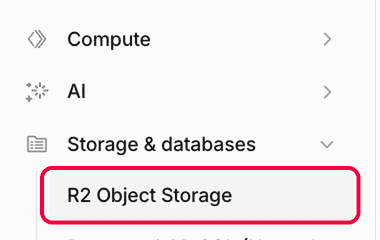
Then look at the menu on the left. Press Storage & databases, then R2 Object Storage — the one in the red box:
Press Get started. Cloudflare asks for a card once — the free 10 GB costs ₹0.
Create a bucket and paste its name
A bucket is a folder for your files. On the R2 page, press the blue Create bucket button at the top right:
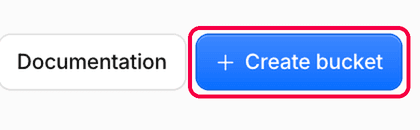
Cloudflare asks for a name. Copy this one and paste it there. Do not change anything else. Press Create.
Then paste the same name here:
Copy 3 codes from Cloudflare
Look at the bottom right of that page. There is a small box called Account Details. It looks like this:
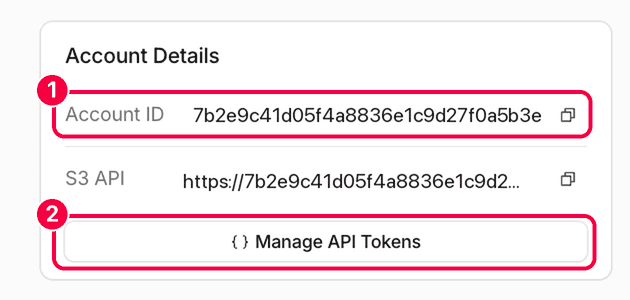
Code 1 — Account ID (red box 1 in the picture)
Press the small copy icon at the end of that line, then paste it here. It is one long code of 32 letters and numbers. It is not your e-mail, your website or the bucket name.
Codes 2 and 3 — your keys (red box 2 in the picture)
- Press Manage API Tokens, then Create API Token.
- Under Permissions, choose Object Read & Write.
- Press Create API Token at the bottom.
- Cloudflare now shows two codes: Access Key ID and Secret Access Key. Copy each one and paste it below. Do this now — the secret is shown only once.
Paste the CORS policy
Open your bucket → Settings → CORS policy → Add, paste this exactly (it lets your browser upload videos straight to your bucket), Save:
[
  {
    "AllowedOrigins": [
      "https://your-app-address"
    ],
    "AllowedMethods": [
      "GET",
      "PUT"
    ],
    "AllowedHeaders": [
      "*"
    ],
    "MaxAgeSeconds": 3600
  }
]Stored encrypted in your own database and copied to your Railway variables; checked live against your bucket the moment you save.